Tip of the Week: Customize email message when sending invoices and statements


Sending invoices via email has become a very common occurrence for firms. It saves paper, postage and time. It allows your clients to get their invoices faster which means, in theory, you should get paid faster. And if you utilize our client portal, you will get paid faster because clients can pay their invoice via credit card online.
When you send invoices via email, a PDF of the invoice is included as an attachment. But what about the message in the email itself? Today’s tip of the week concentrates on how to customize that message to read exactly as you’d like.
There are several places where one can customize the email message and we’ll get to that in a second. But first, we should be clear what the default message is when no customization has been done. When you send an invoice via email without making any changes, the copy in the body of the email will look like the following:
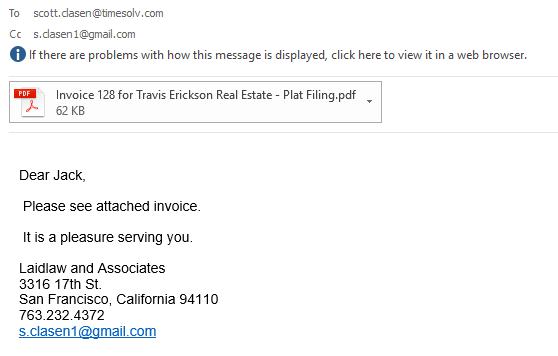
The main contact’s first name is included with a short message and the firm name, address and the email from the firm owner.
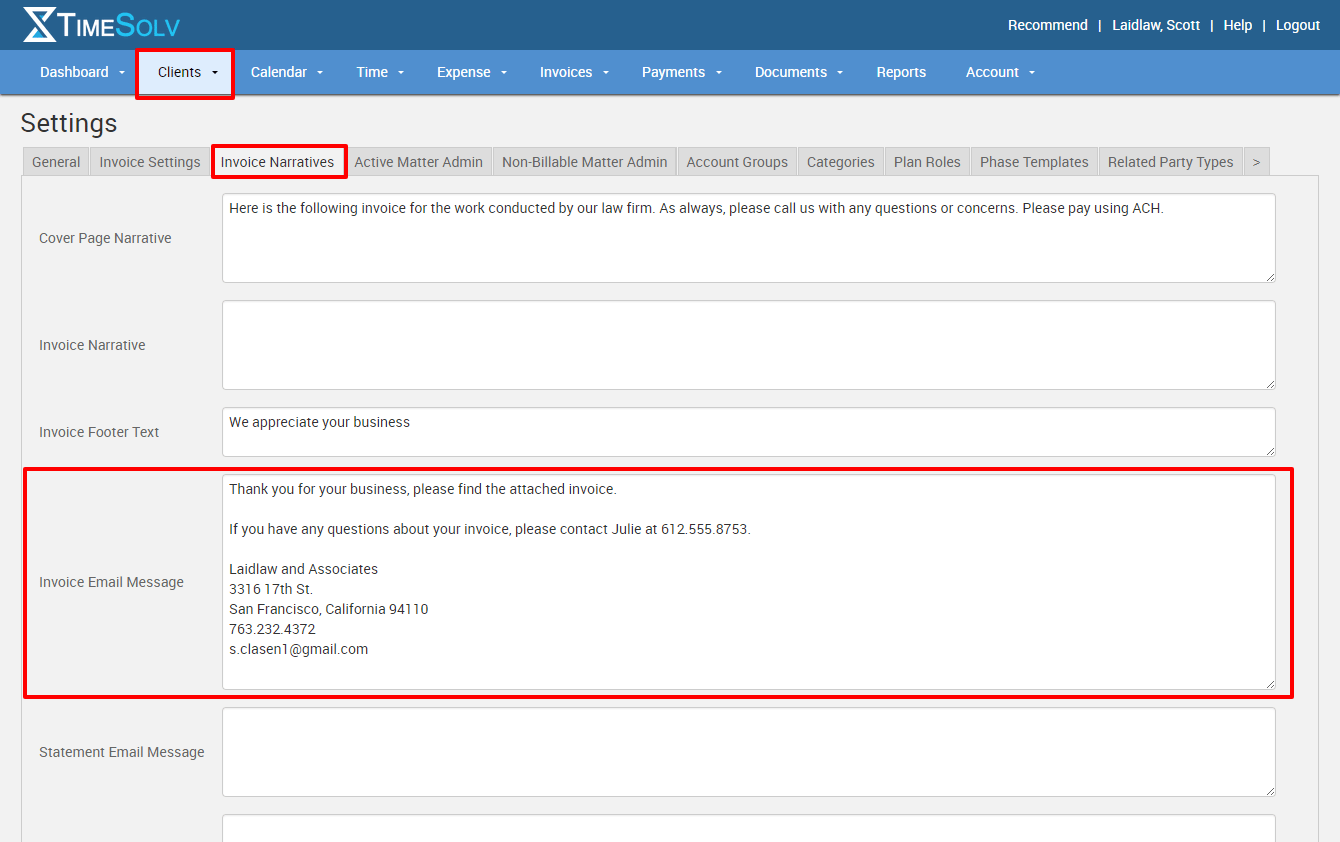
If you know you’d like to have another message in your emails, there are many places to do so. The place to create your default email message is under Client -> Settings. Then click on the Invoice Narrative tab. You’ll see a box labeled Invoice Email Message where you can write your own message for ALL invoices that are sent via email.
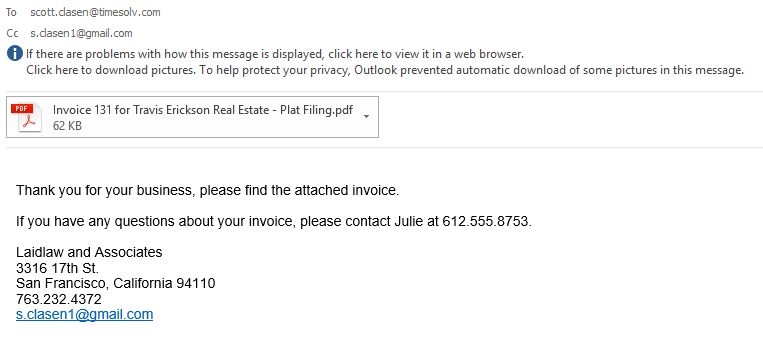
Now, your email message will look like this:
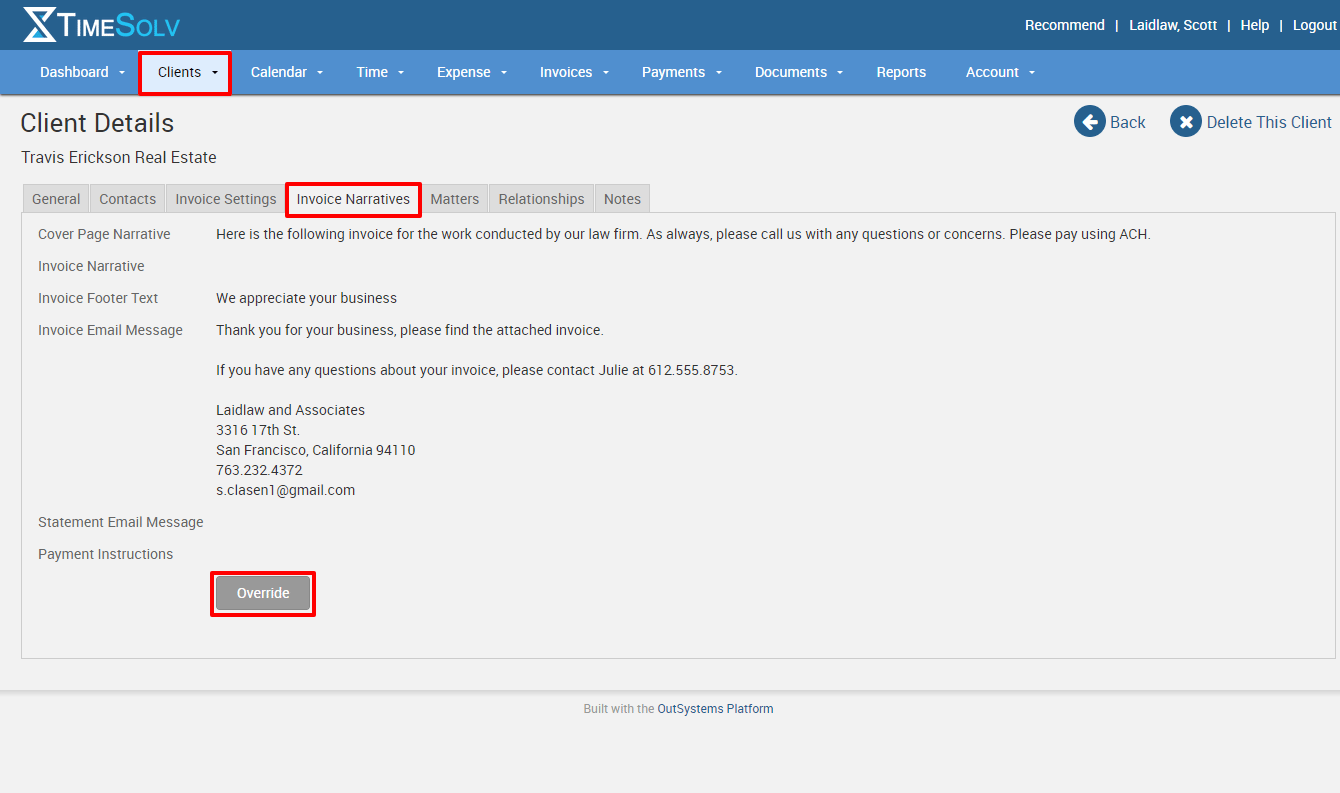
If you’d like to customize even further, you can always do so at the client and matter level. When viewing both your clients and your matters, you’ll always have an Invoice Narrative tab where you can override the default settings you created and customize even further. This is where you can create the “Dear Jack” or other very specific information about your client and/or the matter you worked on.
You also have one last chance to edit your email message before sending out the email. When viewing your draft invoice, click on the dollar amount for the invoice and you’ll see the Narratives tab. This is once again a place where you can override what is at the default, client or matter level.
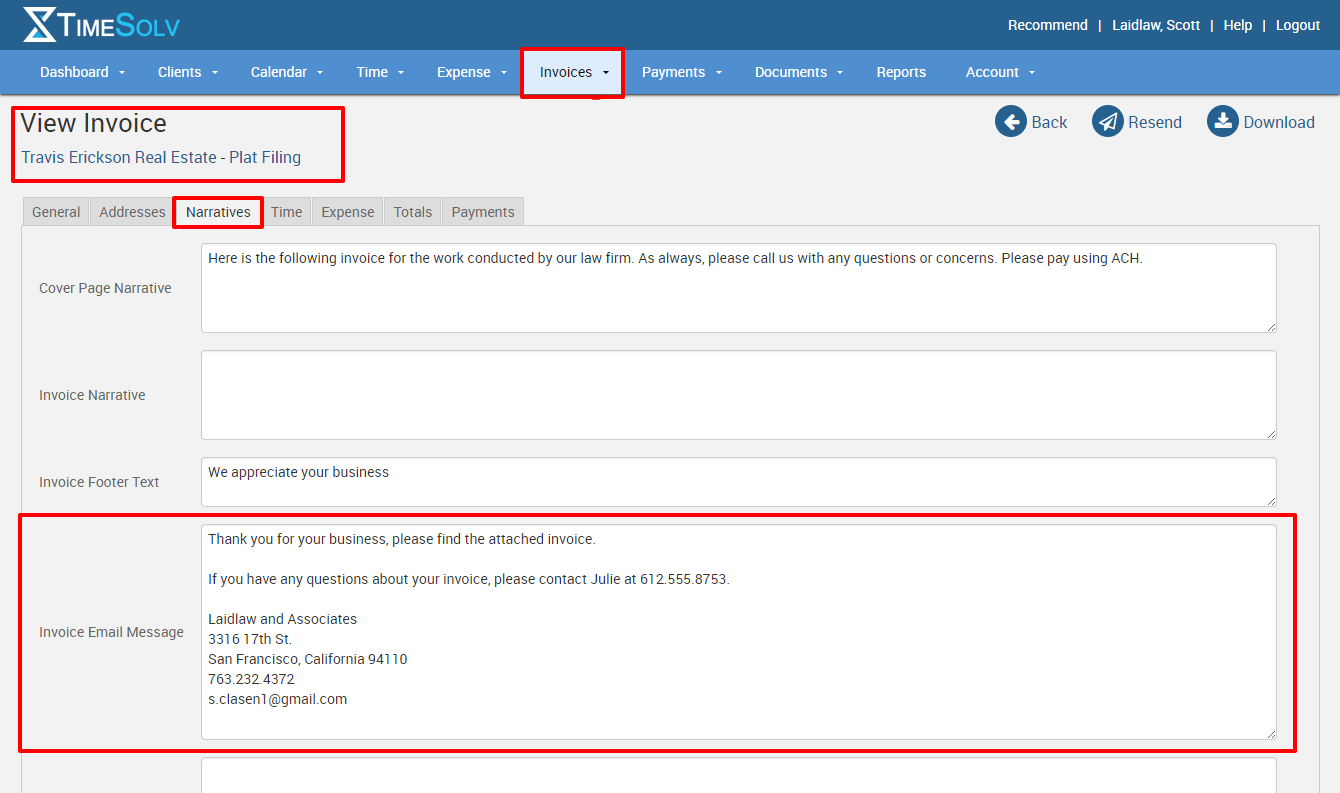
So you can see, there are a lot of options and places to create and customize the message in the body of the email when sending your invoices.
If you’d like more help with this feature, call us at 1.800.715.1284, email us at support@timesolv.com or Contact support.
Don’t forget to register for our Wednesday Webinars where we review all the Tip of the Week posts from the past month. Our next Wednesday Webinar will be August 2 at 1 p.m. EDT/10 a.m. PDT.

wherever you do.
TimeSolv in action.