Tip of the Week: Aged Accounts Receivable Listed on Invoices


Aged Accounts Receivable shows a record of unpaid invoice balances along with the duration for which they’ve been outstanding. This is a principle factor in helping identify open invoices and narrows down on those clients that are prone to get overdue. By showing that record of unpaid invoice balances to your clients, you can let them know that you are on top of your invoicing and collection process, as well as appropriately dealing with those regularly struggling to pay on time. This increases your cash flow and helps rid your business of factors weighing down on your revenue. TimeSolv’s just rolled out a new update that allows you to customize your Flexible Billing Template to include a grid of Aged Accounts Receivable on your bills. This week’s Tip of the Week takes a look at how to enable this and how it’ll look for your clients.
Users can turn on the Aged Accounts Receivable grid for the Cover Page, Main Invoice Page, Statement Page, and Remittance Page. Just head under Invoices>Settings>Flexible Templates tab. Open up either an existing template or perhaps create a new ‘Aged Accounts Receivable’ template and check those boxes under each appropriate page tab.
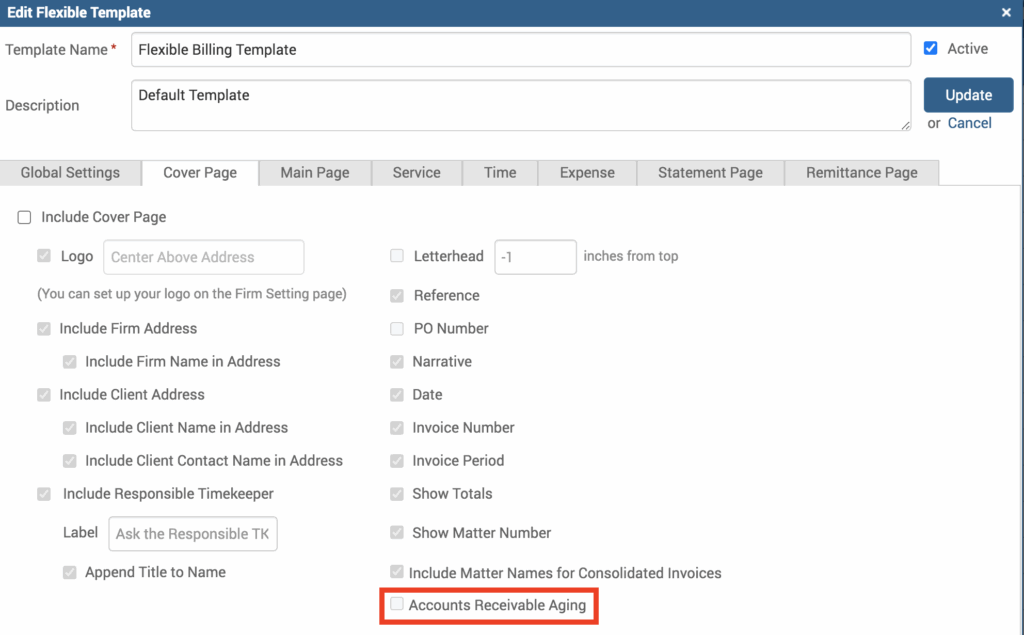
So let’s say you have a specific Client that you know for sure you’ll be needing that Accounts Receivable Aging grid on their invoices. You can set the new template you created (above) against that client from under Clients>Clients & Matters>[Client name]>Invoice Settings and set the ‘Default Flexible Template‘ as the one that has the Aged Accounts Receivable checkboxes enabled.
Alternatively, users can also set this up under individual invoices as and when needed. To do this, click under Invoices>Drafts. Click on the dollar amount of the invoice to open it up for editing. Under the ‘General‘ tab specify the template with the Aged Accounts Receivable checkboxes enabled in the ‘Template‘ field.
Now, whenever you need your Client’s to see their outstanding invoices they’ll be able to see the following grid:

When you generate an invoice with the above grid on it, you can ensure your clients have all the information they need for what they owe along with a clear cut visible of their financial history.
If you’d like to contact TimeSolv support for help, please call 1.800.715.1284 or Contact support!
wherever you do.
TimeSolv in action.