Tip of the Week: Billing Categories


Billing Categories are a great way to organize your Clients and Matters into refined batches. This helps you generate invoices with a more systematic approach. Billing in batches will allow you to invoice and process payments for a group of customers together. For example, you may want to schedule a bill run for your Family Law clients every first of the month, while performing daily bill runs to invoice your Criminal Law clients. This week’s Tip of the Week will walk you through creating Billing Categories, assigning them to Clients and Matters, and using them when generating invoices.
Create Billing Categories
Billing Categories will help you invoice your clients in systematic batches so that you can generate, review, and send your invoices against those Clients and Matters with a common interest.
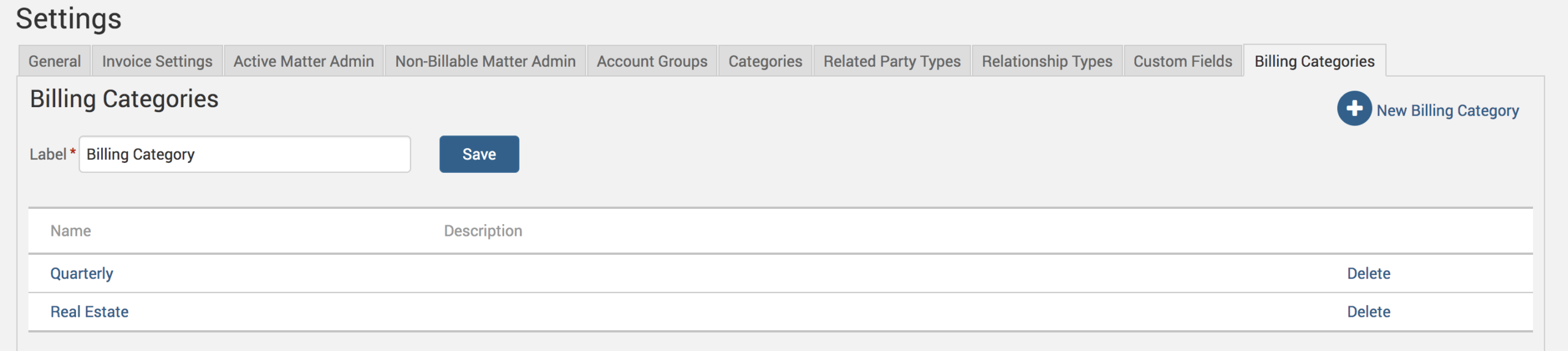
To create these categories, head under the Clients>Settings>Billing Categories tab.
Create a new Billing Category from this screen, or even rename the label ‘Billing Category’ to anything you wish, suiting your personal business setup.
Assign Billing Categories
Next, you’ll want to assign these Billing Categories to the appropriate Clients and Matters. To do this, click on either the Client or the Matter, and the Invoice Settings tab under it. Assigning Client-level categories will apply them universally to all Matters that appear under the specified Client. Or to apply to a specific Matter only, assign them under the Matter-level invoice settings.
Under the ‘Billing Arrangement’ section of the Invoice Settings screen, you’ll see a ‘Billing Category’ field. Assign as many Billing Categories to the Client/Matter as wanted.
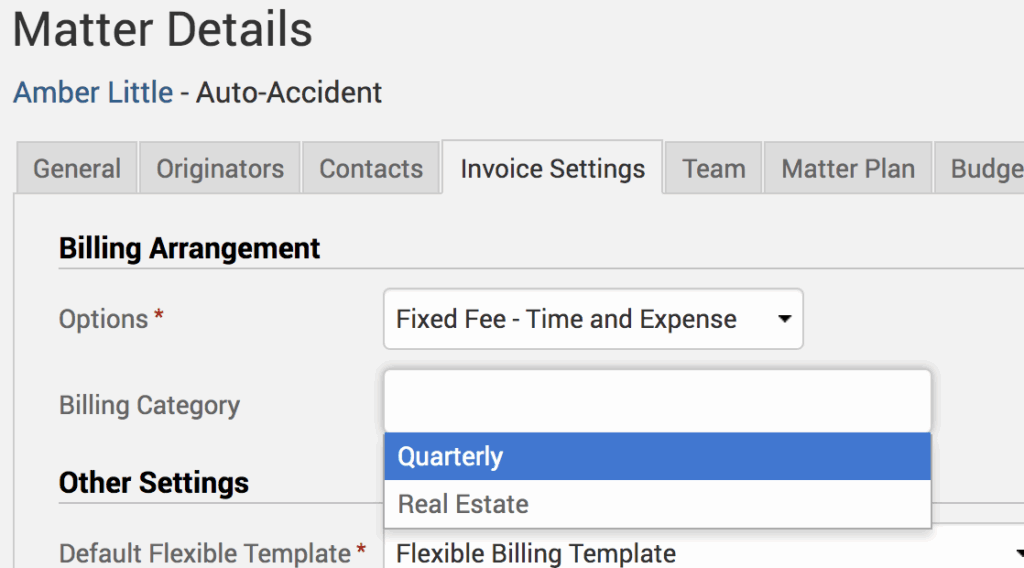
If a category is not specified for a Client or Matter, draft invoices will generate for them if the Billing Category is left at ‘None Specified.’
Generate Invoices for Billing Categories
To draft invoices by Billing Category, go under Invoices>Drafts>New Draft Invoices in the upper right-hand corner. Then choose the appropriate Billing Categories before hitting ‘Create’.

Note that on consolidated Matters, only the Client-level Billing Categories will be used.
If you’d like to contact TimeSolv support for help, please call 1.800.715.1284 or Contact support!
wherever you do.
TimeSolv in action.