Tip of the Week: Copy/Move Time Entries


Have you ever worked on unvarying tasks for multiple Matters, and had to deal with copying the same Time Entry repeatedly when all you need to do is change the Matter name? Or worse still, ever mistakenly entered multiple Time Entries into the wrong Matter, and despaired at the fact that you couldn’t move all those entries in bulk over to the correct Matter? Well, put your worries aside! TimeSolv always has the best features to help your efficiency when it comes to minor tasks. This week’s Tip of the Week takes a look at how to move and copy Time Entries to different Matters.
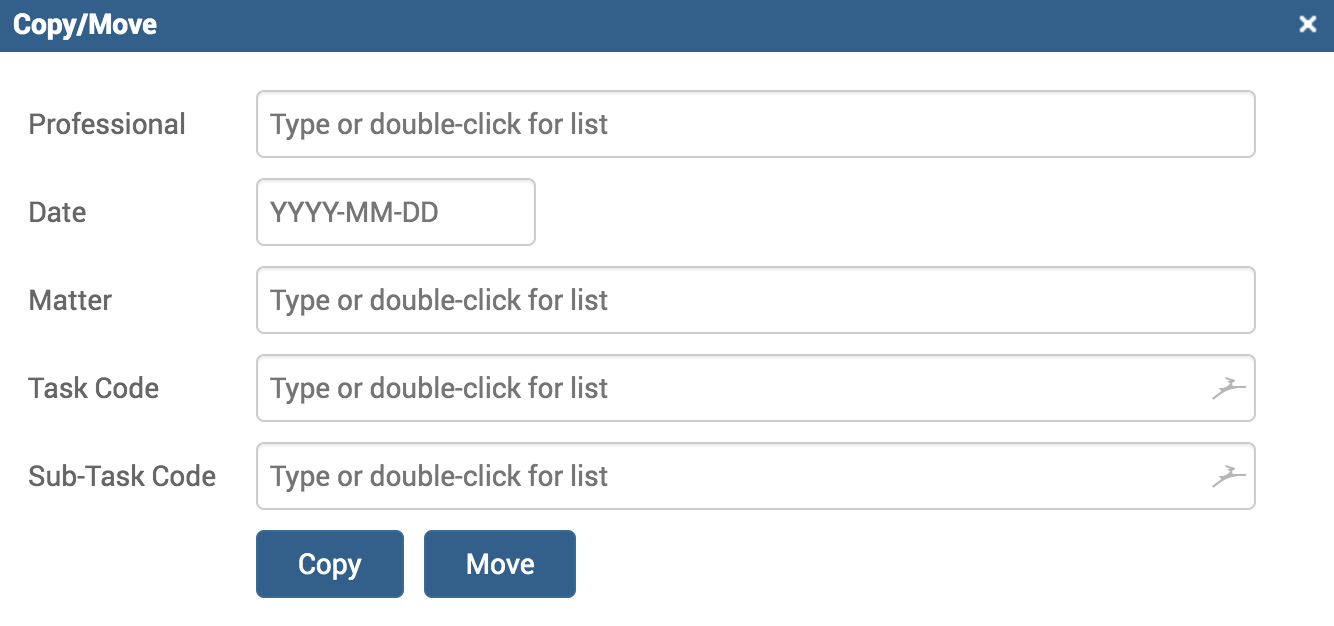
Under the Time>Search screen, users can see a ‘Copy/Move‘ button on the top right of the screen. After searching for the appropriate Time Entries that need to move, clicking on the ‘Copy/Move‘ button will initiate a pop-up window. Fill in the form with the details of where the entries need to be moved/copied to.
Move – means replacing the original user, Date, Matter, Task Code and/or Sub Task Code with the ones (optionally) selected in the Time Entries.
Copy – means creating a duplicate of the Time Entry and replacing these attributes with the specified values. Rates are calculated as per Client/Matter rate. The total amount is calculated as per rate and hours.
The specified value overwrites the value in the Time Entry when the Time Entry is copied or moved. When no input is specified, the original value from the selected Time Entry is retained.
Below are some constraints when moving/copying entries:
Timekeeper – if the Timekeeper is not assigned to the Matter to which the Timekeeper is being copied/moved to, the user cannot create or move the Time Entry unless they are the firm Admin.
Matter – if a Time Entry causes the Matter to exceed budget and ‘prevent exceed’ is enabled, the user cannot copy/move the Time Entry.
Task Code – if the original Time Entry has a Matter setting different from the new Matter and the required Task Code or Sub-Task Code is missing, the user cannot copy/move the entry.
Split Time Entries – cannot be moved.
If you’d like to contact TimeSolv support for help, please call 1.800.715.1284 or Contact support!
wherever you do.
TimeSolv in action.