Tip of the Week: Data Backups


Loss of data from security threats or disasters can lead to major problems for the business. You can end up with lost revenue, potential bankruptcy, and upset customers. 90% of businesses without a data recovery plan are out of business within a year of facing a major disaster.
The purpose of a data backup is to create a copy of data that can be recovered in the event of a primary data failure. Primary data failures can be the result of hardware or software failure, data corruption, or a human-caused event, such as a malicious attack (virus or malware), or accidental deletion of data. Backup copies allow data to be restored from an earlier point in time to help the business recover from an unplanned event. Backing up your data also means you gain a competitive advantage when afflicted with data loss or complications. This week’s Tip of the Week takes a look at TimeSolv’s data backup options.
Although TimeSolv backs up your data automatically multiple times a day, if you would like access to your own local copy you would need to opt-in for one of the following backup options:
The Automatic Data Backup Service
TimeSolv has an automatic data backup service. To opt-in for this service, simply head under Account>Import/Export>Backups. This service costs a mere $19.95 a month, which is a nominal fee to help your business remain secure from any disasters or mishaps.
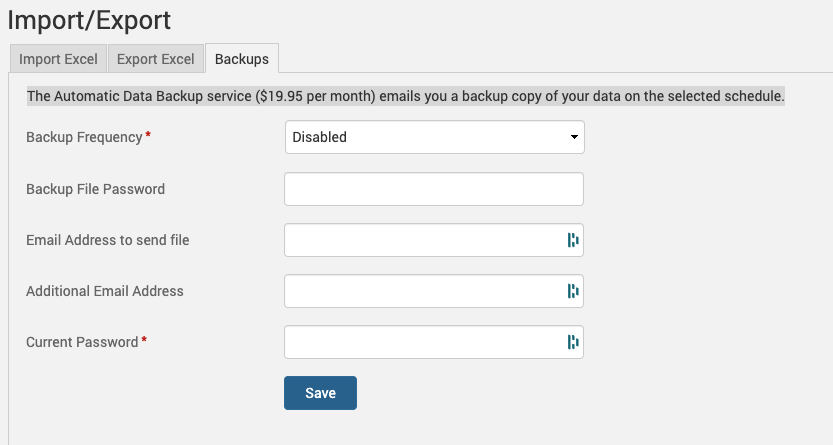
Your backup copy of your data will be emailed to you at your desired frequency to your specified email address. For security purposes, we also require a backup file password to be set. Having TimeSolv automatically back up your data helps avoid firms backing up their own devices inconsistently and irregularly.
Export Excel
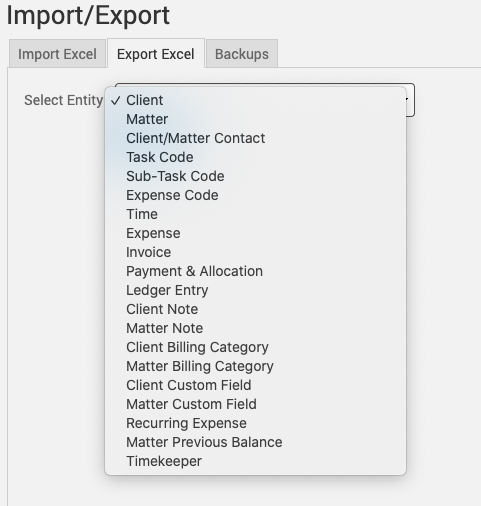
The second option would be to create your own data backups under the Account>Import/Export>Export Excel screen. Here you can select any of the data entities below to save an Excel copy of your data.
Reports
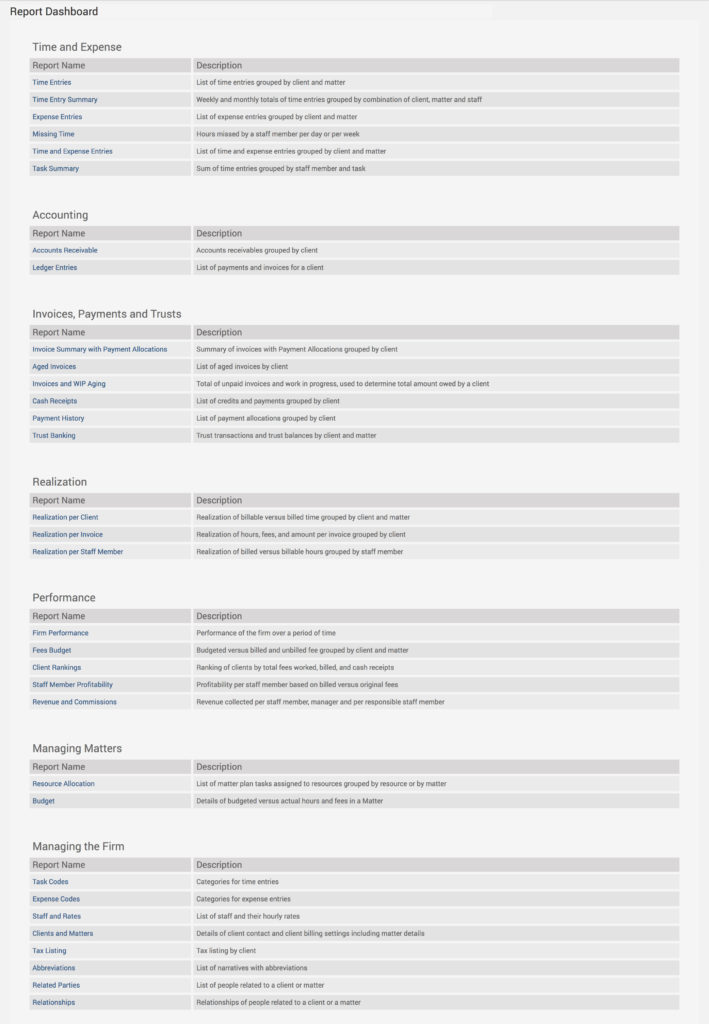
Lastly, users can always run a report and output it to Excel. TimeSolv has a robust and customizable reporting feature so you can specify exactly what types of data you want to have backed up.
To access reports, click on the Report tab on the top menu bar. Below is a list of the types of reports we offer:
Maintaining a backup and recovery solution that has strong security is foremost when looking to protect and save data. By opting for a data backup solution, your firm lowers its risk of disruptions, which of course means more uptime.
If you’d like to contact TimeSolv support for help, please call 1.800.715.1284 or contact support!
wherever you do.
TimeSolv in action.