Tip of the Week: Time & Expense Entry Approvals


Approval systems can be an essential tool for ensuring quality control for your valuable clients. TimeSolv allows you to dictate approvals for entries created against certain Matter/Projects, or entries created by certain Timekeepers. Reviewing your employees’ work can also serve as a dependable teaching method for reflecting your business’s standardization and internal process.
Approval settings
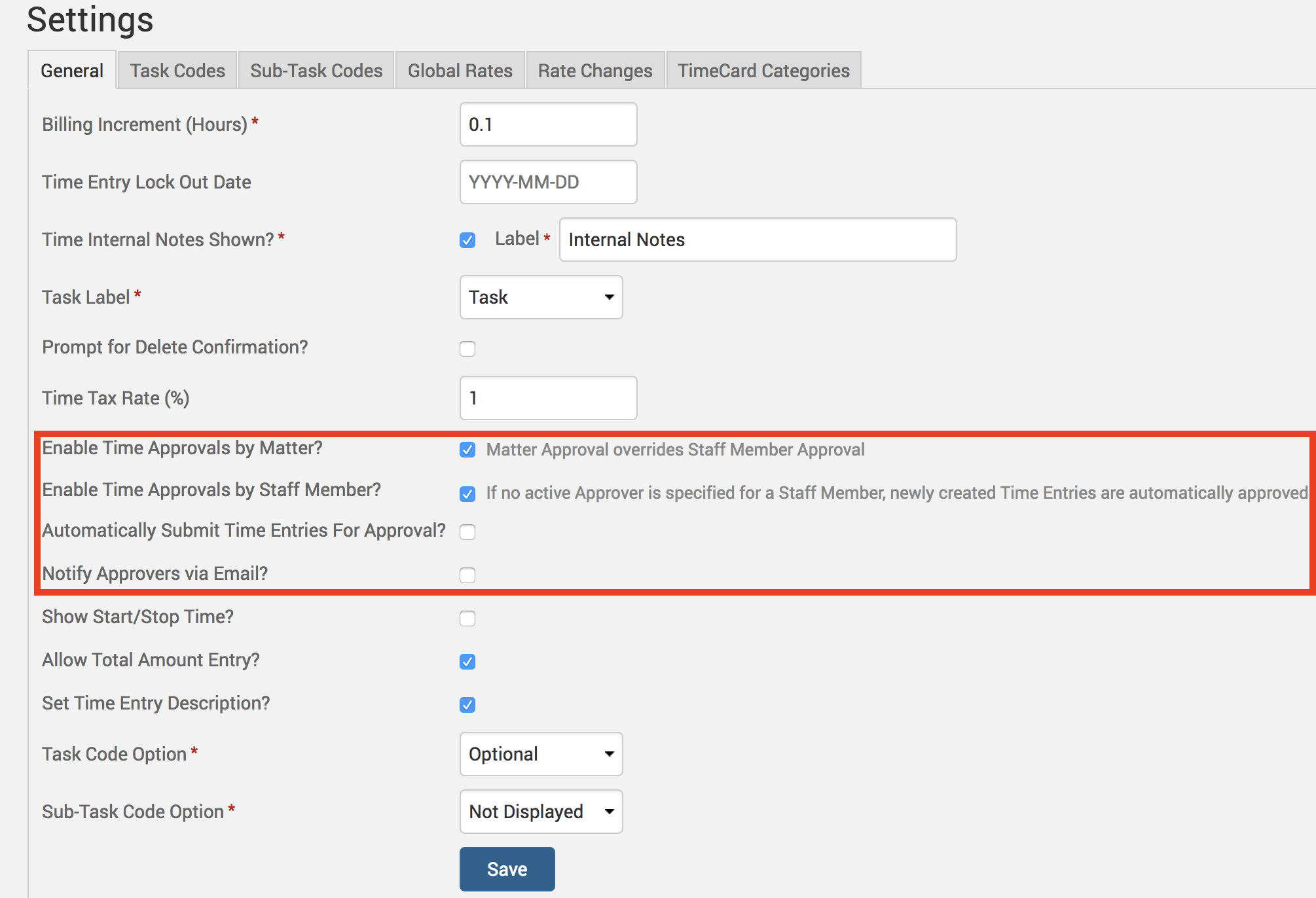
Click under Time>Settings to determine whether you would like to enable the approval process to be set at the Matter/Project level, at the individual Timekeeper level, or both. Any Matter level approvals set up will override settings under individual Timekeepers.
There is also a checkbox on this screen for enabling email notifications for the approver, which sends out a single email and simple reminder at the end of each day for pending approvals. If this checkbox is not enabled, there will be no notification given to the approver, and it will be their onus to go into Time>Approvals and ensure they review any pending requests.
Matter level approval settings are found under Clients>Clients & Matters>[matter name]>General tab, where you will see checkboxes for requiring approval for Time and Expense entries.

To setup an Approver for the Matter/Project, or to setup an approval system for entries created by a specific user, you will have to go under the Timekeeper level approval settings: Account>Staff/Timekeeper/Professionals>[name of Timekeeper]>General tab, where you will see Manage Approvers button and Manage For button. Click on the Manage Approvers button to setup other Timekeepers as approvers for this specific user’s entries. Click on Approver For button to make this specific user an approver for a Matter/Project.

Approval Process
To create an entry for a Timekeeper that requires approvals, the user will see a Submit for Approval button on the Time/Expense Entry screen. The user can click on this button to see a list of entries awaiting to be sent for approval, and selectively send entries out to the Approver(s).
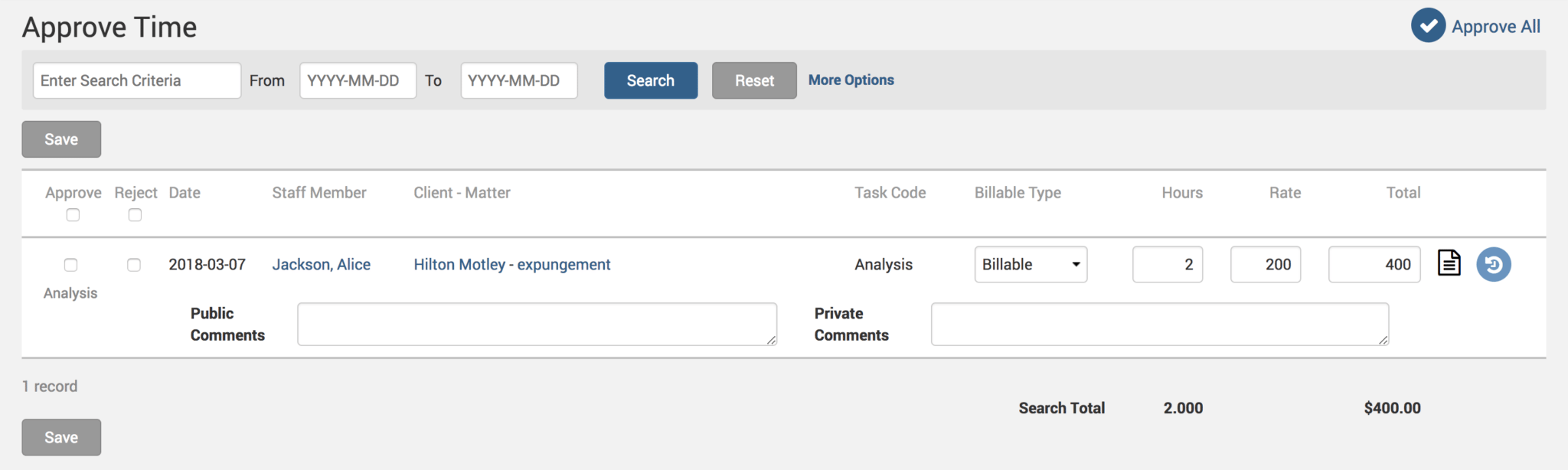
For an Approver, the user would need to go under Time>Approve Time (or Expense>Approve Expense) to review the details of the entries and appropriately choose Approve or Reject against each entry. If the entry is to be rejected, the approver has the option of writing notes for both private use and for the user of the entry submitter.
This user friendly and filtered method of ensuring your clients get the best from your employees means your business ultimately reaps the benefits of maintaining high quality of service.
If you’d like TimeSolv support to help you with our Timekeeper approval process for Time and Expense entries, please call 1.800.715.1284 or Contact support!
wherever you do.
TimeSolv in action.