Tip of the Week: Dropbox integration

Our Tip of the Week today announces a new integration wiht TimeSolv. We are pleased to offer integration with Dropbox, allowing you to seamlessly sync and access your Dropbox documents right within TimeSolv.
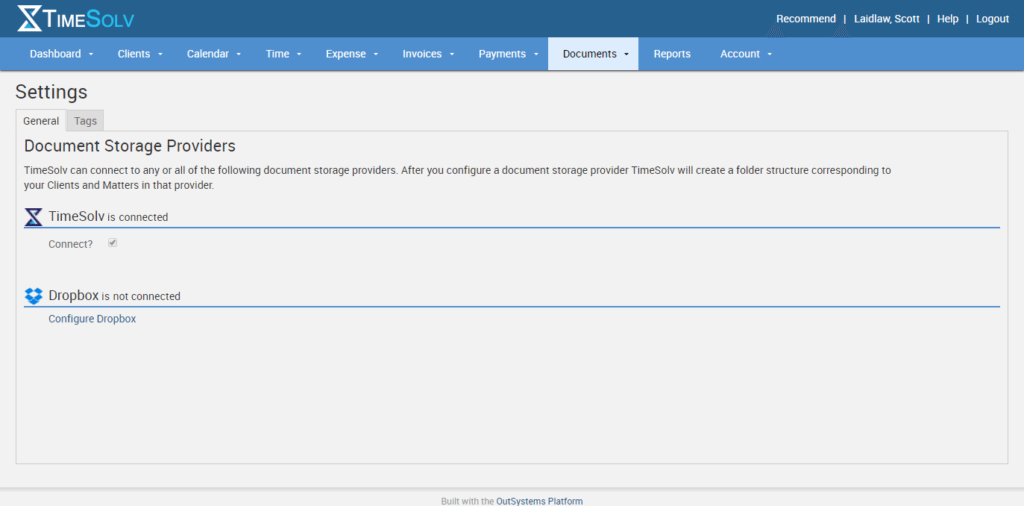
If you have a Dropbox account and would like to connect to TimeSolv, head to Documents -> Settings within your TimeSolv account. You will then see two options for document management, either using TimeSolv’s document solution or click on Configure Dropbox to connect your account.
You’ll then be presented with a blue Connect to Dropbox button. This will take you to your Dropbox account where you will be asked to authorize the integration. After that succesful authorization, a new folder will be created in your Drobbox account labeled Apps and within that folder you will see a TimeSolv folder. All of your clients and matters will automatically have folders created in the TimeSolv folder. This buidling of your client/matters folders may take a few mintues depending on size.
PLEASE NOTE: Dropbox does not support the following characters in folder names of either clients or matters: < > \ / : ? * ” |
Once the integration has taken place, you can now upload files to your Dropbox folder directly from TimeSolv or whenever you add a file to Dropbox, it becomes available in TimeSolv. You can only add files to Dropbox while in TimeSolv, not folders. If you’d like to create sub-folders within your Client/Matter folders, you need to do this in Dropbox.
Another important note. On the Documents -> Settings screen, you’ll see the option now to disconnect your TimeSolv document storage feature once you’re connected Dropbox. We highly recommend you do so if you’re going to be using Dropbox because by default, when you open Documents within TimeSolv, it will go to the TimeSolv documents tab if you have it connected. Disconnecting the TimeSolv document storage will eliminate that confustion.
If you’d like more help on learning about how to integrate your Dropbox account, call us at 1.800.715.1284, email us at support@timesolv.com or Contact support.
wherever you do.
TimeSolv in action.