Tip of the Week: Assigning matters to professionals

There are times as a law firm where you may not want all your associates to see every client and matter the firm is working on. You’d like to be able to limit what they can see when entering time and expenses. We covered how to set up permissions for your timekeepers and support staff in another blog post, but today’s Tip of the Week looks at how to restrict the time and expense entry screens to only show the clients and matters assigned to them.
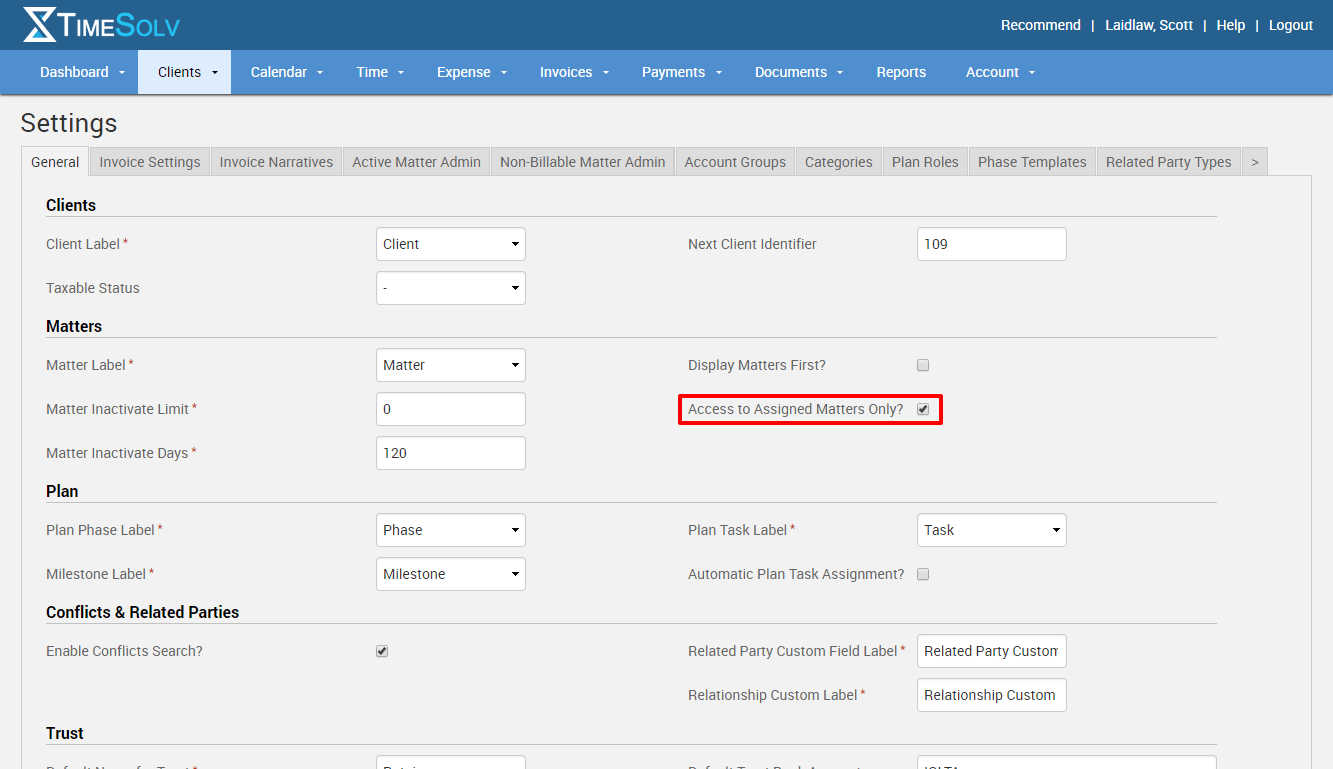
In order to restrict access to only matters assigned to your timekeepers, first choose Clients -> Settings. In the right column of the Matters category, you’ll see “Access to Assigned Matters Only?” Check the box and click the save button at the bottom.
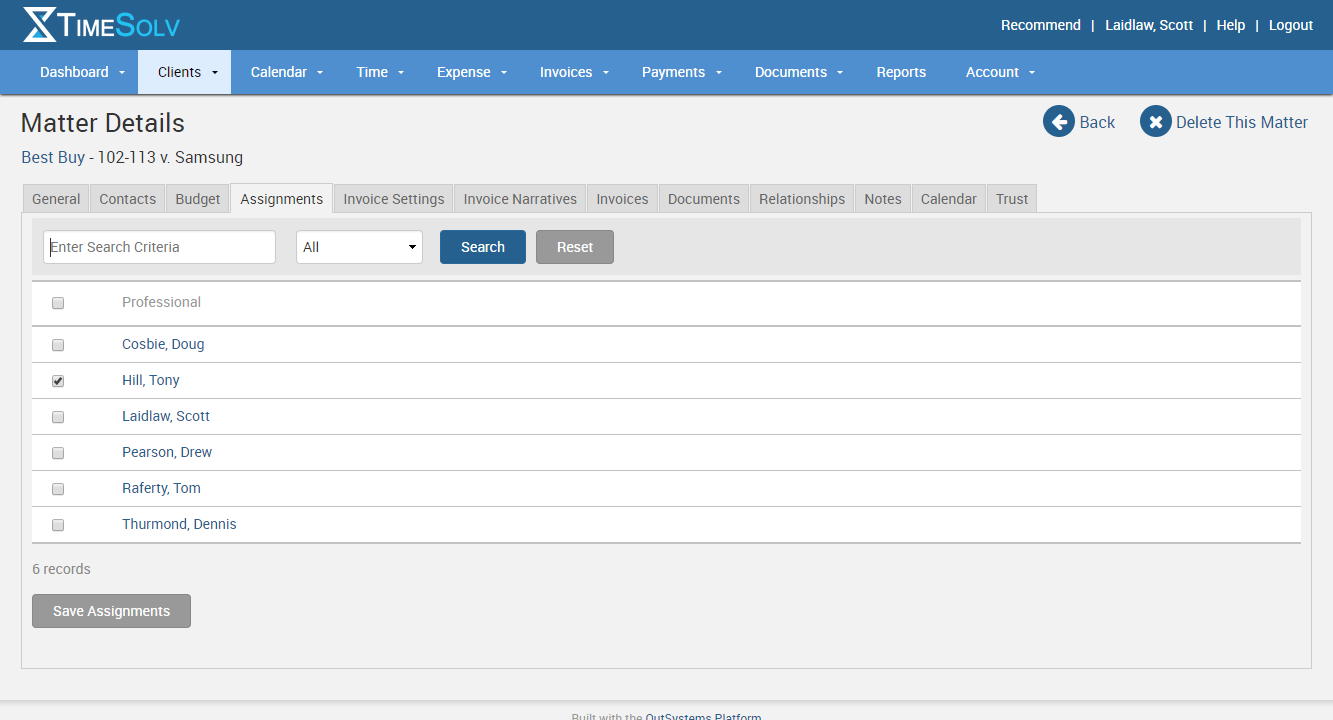
Now you’ll have two places where you can assign matters to your timekeepers. The first is at the matter level. Click on Clients -> Clients & Matters and choose a matter you’d like to assign to one or more timekeepers. There will now be a tab labeled Assignments that was not there previously. Check the box next to each attorney who you want to assign to that matter.
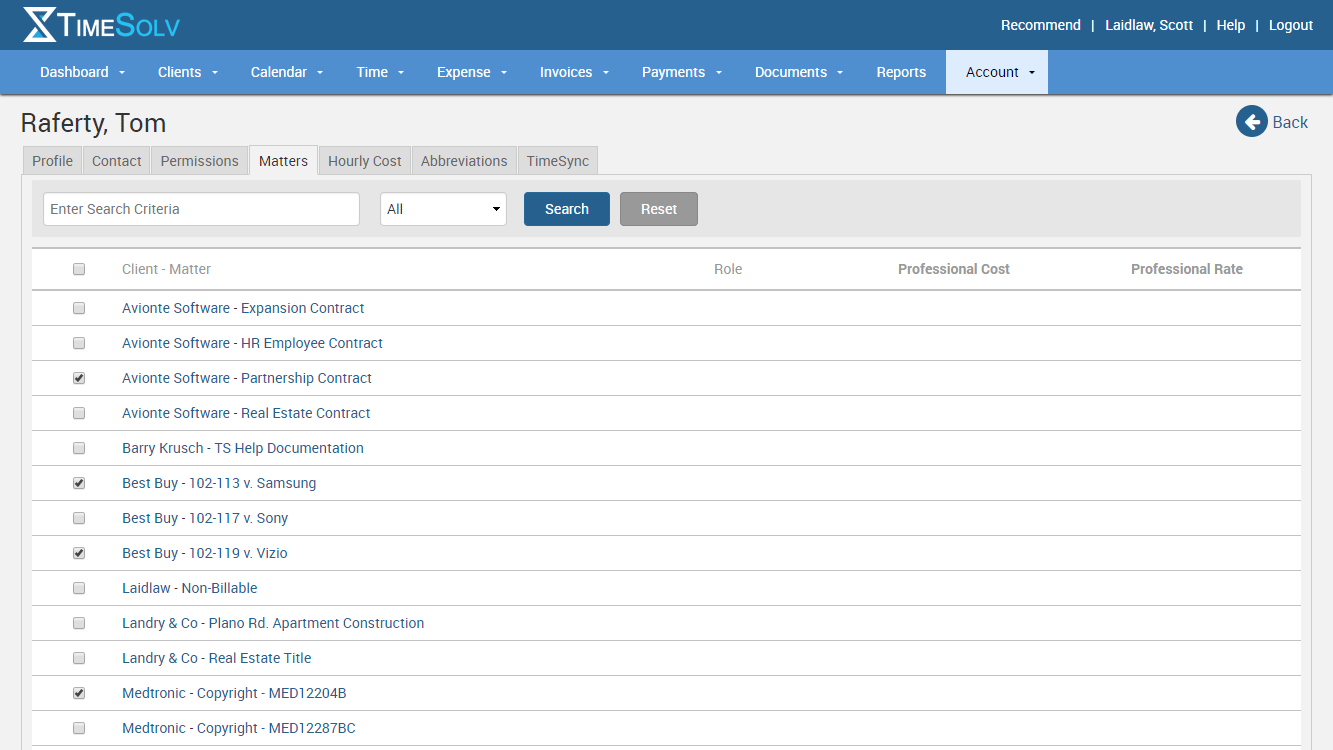
The other way to assign matters to a timekeeper is to go to Account -> Professional and select the timekeeper who you want to assign matters to. Chose the Matters tab and you’ll see a list of all your clients and matters. Simply check the box next to the clients and matters for this timekeeper and select Save Assignments at the bottom.
Now, when your timekeepers are completing time or expense entries, they will ONLY see the ones assigned to them, they will not see other clients or matters that may be assigned to others. It’s also important to note that even if you have multiple timekeepers assigned to a matter, they will only be able to see their own entries for that matter, no one else’s.
If you’d like more help on assigning matters to your timekeepers, call us at 1.800.715.1284, email us at support@timesolv.com or Contact support.
wherever you do.
TimeSolv in action.